
How to Delete an eSIM Profile (iPhone and Android)
 co:sim Team
Deleting an eSIM profile is usually permanent: most travel eSIMs are provisioned for a single install, so the same QR code typically won't work a second time once you erase it. That makes deletion the right move when selling a phone, freeing storage from old trips, or doing a clean factory reset — not a mid-trip fix for a connection problem. Apple's own guidance is direct about the first case: erase the eSIM before you sell, trade in, or give away a device. This guide covers the exact steps on iPhone and Android, what to check first, and what to do if the delete option won't budge.
#Before You Delete an eSIM
Three checks take thirty seconds and can save a real headache:
- Know what's actually being removed. Deleting an eSIM erases the downloaded profile, not the phone's eSIM hardware. The embedded chip that stores profiles, called an eUICC, stays built into the device and is ready for a new profile next time, per GSMA's eSIM explainer — there's nothing physical to remove, unlike pulling a SIM card.
- Confirm you're actually done with it. A data-only travel eSIM like the ones co:sim sells carries no phone number, so there's nothing to port before deleting — but once the profile and its data allowance are gone, they're gone. Leave it installed if a trip still has days left on the plan.
- Delete it online, not in Airplane Mode. Whether a deleted eSIM can come back sometimes depends on whether the phone was connected at the moment of deletion, since the profile has to notify the issuing server before a slot frees up for reinstallation.
- Check the label before you tap delete. With more than one eSIM installed, confirm which line you're removing (Settings shows a name for each plan) — deleting the wrong one means reinstalling a line that was working fine.
Selling a phone, freeing storage after years of travel, or tidying a SIM list cluttered with expired trip profiles all call for the same steps below.
#How to Delete an eSIM on iPhone or iPad
The path is short, and it's the same on iOS and iPadOS, per Apple's official instructions:
- Open Settings.
- Tap Cellular (iPhone) or Cellular Data (iPad).
- If you have a single plan, tap Delete eSIM. With more than one, tap the plan to remove, then tap Delete Plan.
There's no confirmation email and no waiting period; the profile is gone as soon as you tap through. Doing a full Erase All Content and Settings instead? Apple asks separately whether to erase eSIMs along with everything else — choose to erase them if the phone is heading to a new owner.
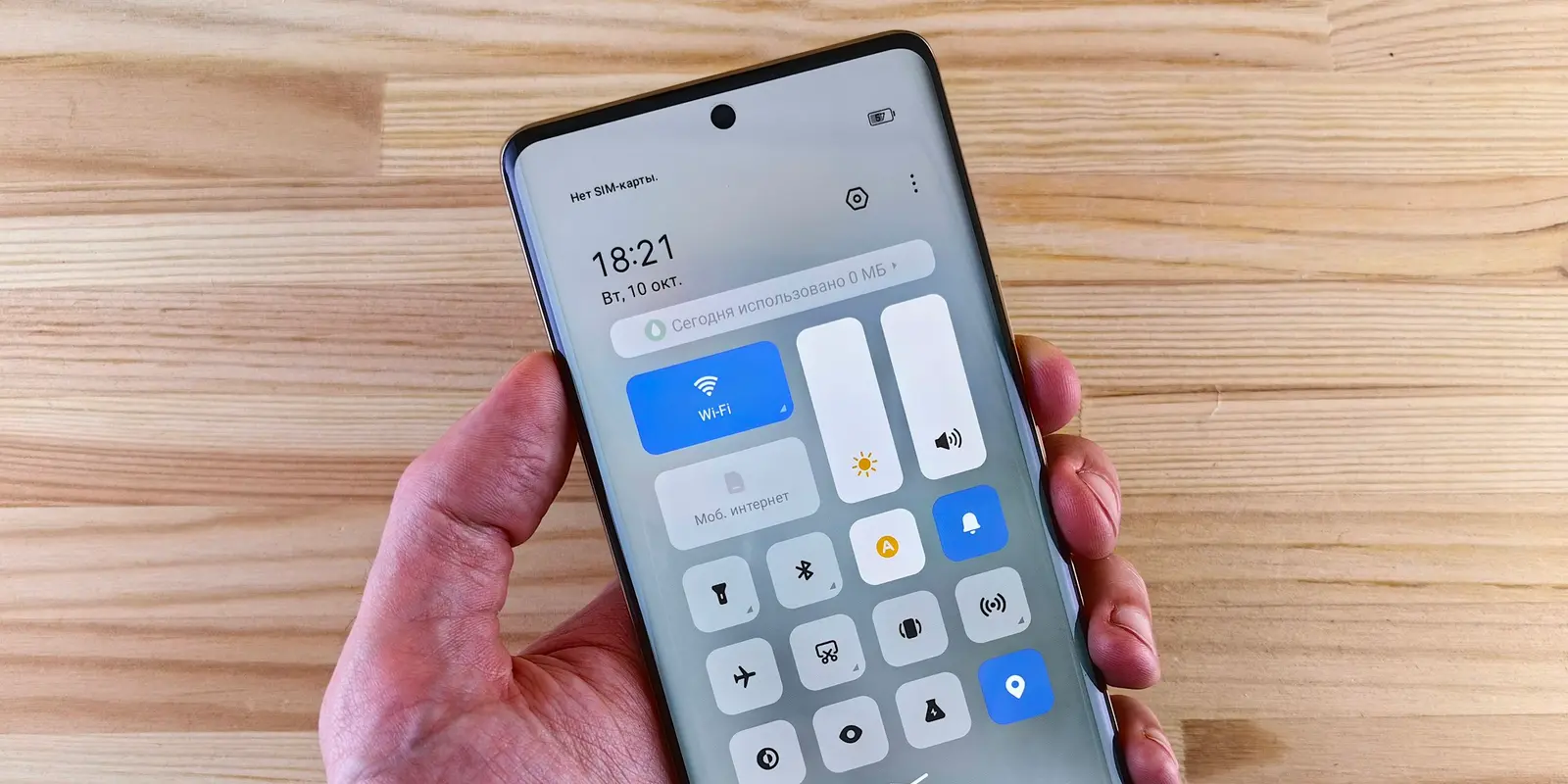
#How to Delete an eSIM on Android (Pixel, Samsung, and Other Phones)
Android's exact wording depends on the manufacturer, but two official examples show the shape of it. On a Google Pixel, Google's own steps are:
- Open Settings.
- Tap Network & internet, then Mobile network.
- Select the eSIM you want to delete.
- Tap Erase eSIM.
On a Samsung Galaxy phone, eSIMs live wherever you manage any SIM: Settings → Connections → SIM manager, where selecting a profile brings up the option to remove it. Other Android brands use their own menu labels, but the pattern holds: look under Connections, SIM cards, or Network & internet, and search settings for "SIM" if the wording here doesn't match.
#If Your eSIM Won't Delete
#The delete or remove option is greyed out
A carrier or device-management (MDM) profile is the usual cause, or the phone simply needs a restart to release the eSIM. Restart first; it clears most cases on its own. If it's still stuck, check whether that eSIM is your only active data connection. Some phones block deletion of the line currently carrying data until you switch to Wi-Fi or another SIM first.
#You deleted the wrong eSIM, or deleted it by accident
Don't reinstall from an old screenshot of the QR code; that image may no longer activate anything once the original install is marked used. Check whether the phone was online at the moment of deletion, then contact whoever issued the eSIM directly rather than buying a replacement outright — some providers can restore or reissue a profile faster and cheaper than starting from scratch.
#You're still being billed after deleting it
Deleting an eSIM removes it from the phone; it does not cancel the underlying plan. Apple says this plainly: cancelling a cellular plan still requires contacting the carrier directly. This mostly bites on postpaid carrier lines. A prepaid travel eSIM like co:sim's is a single, upfront purchase with no recurring subscription, so there's no separate cancellation step once the plan's data or validity runs out.
#FAQ
#Can I reinstall an eSIM after I delete it?
It depends on the provider, and for some providers, on whether the phone was online at the moment of deletion. Many travel eSIM QR codes are single-use: once a profile installs, the activation code is marked used on the issuing server, and reinstalling, even on the same device, needs a fresh code. That single-use design is a deliberate security feature, tying each code to one device so a leaked or reused QR code can't quietly hijack someone else's line after the legitimate install already happened. Some providers, including co:sim, let you reinstall from the same QR code on the same device when the deletion happened while the phone was online; delete it without a connection and even the provider often can't bring it back. If a plan still has time or data left, the safer move is leaving it installed rather than deleting it and hoping to recover it later.
#Will deleting an eSIM free up storage or an active SIM slot?
It frees storage, not necessarily an active slot; they're two different limits, and mixing them up is the most common source of confusion here. Recent iPhones can store eight or more eSIM profiles at once, so running out of storage is rare, though some Android phones cap the number of saved profiles lower, making deletion of old, expired travel eSIMs a genuine way to make room. Simultaneous use is separate: most phones, iPhone and Pixel included, can only run one or two eSIMs for calls or data at a time no matter how many sit in storage, a limit called Dual SIM Dual Standby. Deleting a profile clears clutter and frees storage; it does not change how many lines the phone can run at once.
#Does deleting an eSIM cancel my co:sim plan or stop billing?
There's no extra step needed. co:sim's Data-Only plans are a single, upfront purchase with no recurring subscription, so deleting the profile doesn't leave anything running in the background to cancel. That's a real difference from a postpaid carrier eSIM, where removing the profile from the phone doesn't touch the underlying account or the bill at all; the carrier keeps charging until you separately call or message them to close the line. The confusion is understandable, since deleting an eSIM looks a lot like cancelling a subscription on the phone itself. For a co:sim Data-Only eSIM, once the data or validity period is used up and the profile is deleted, that's genuinely the end of it on your side, with nothing left to close out.
#Does deleting an installed eSIM make it refundable again?
No. co:sim's self-service refund is based on install status at the time, not on what's currently sitting on the device: uninstalled eSIMs can be refunded within 30 days of purchase (plans that bill immediately at purchase are excluded), but once an eSIM has been installed, it's no longer eligible through self-service, and deleting it afterward doesn't reopen that window. This trips people up because deleting feels like "undoing" the install, but the refund eligibility was decided the moment the profile went onto the phone, not by whatever state the device is in later. Installed a plan by mistake and haven't used any data yet? Check the refund option in the account dashboard right away, before deleting anything, since deleting first removes the option to try and support can't retroactively restore eligibility once it's gone.
#How long does setting up a replacement eSIM take?
A few minutes, assuming Wi-Fi and a QR code or activation link are already in hand. For a co:sim Data-Only eSIM specifically, the new QR code lands by email within seconds of checkout, and installing it is the same handful of taps covered above: open Settings, add or scan, then set it as the data line once you land. Buying and installing a replacement ahead of a trip is usually faster and less frustrating than trying to resurrect a deleted profile, especially if the original was deleted offline and can't be recovered. It also means checking the plan page's install deadline against your travel dates while you buy, rather than scrambling to match an old plan's terms after the fact.
Mexico
1-day trip pass
From $2.99
Canada
1-day trip pass
From $2.99
Brazil
Valid 7 days
From $3.99
Setting up a fresh eSIM after deleting an old one takes less time than finding the box your last phone came in. If the old profile is coming out to make room for the next trip, co:sim is a solid pick for the replacement: it covers 190+ destinations, from single countries to regional bundles for a multi-country route, and every plan page states the network, install deadline, and billing-start rule before checkout, so nothing is a guess once you land. Heading to Japan specifically? Start with co:sim's Japan eSIM plan page.