
Back to Blog
Manila's Ninoy Aquino International Airport (NAIA) has free Wi-Fi, and its operator New NAIA Infra Corp. says it upgraded the service. Use the airport connection to confirm a pickup, message someone, or check your next flight. Set up mobile data for the road and any terminal transfer, because a terminal hotspot is not a citywide connection. A Philippines data-only eSIM from co:sim is one way to make that transition on a compatible unlocked phone.
At your NAIA terminal, open Wi-Fi settings and compare the available network with current airport signage or information from staff. The airport operator's Wi-Fi announcement confirms free service and says its connectivity was upgraded. It does not make an old third-party list of exact SSIDs, time limits, or login forms a safe instruction for today. Select the official network, complete any portal step presented by the operator, and test a normal webpage before depending on it for a ride.
If the sign-in screen does not open, switch Wi-Fi off and on, rejoin, and load a simple website in your browser. A phone can show a Wi-Fi icon while still waiting for captive-portal approval. For iPhone users, Apple's guide explains where to choose a network in Settings; Android users can open Wi-Fi from Network and Internet or Connections. Ask at an information desk rather than trusting a nearby network with a similar name.
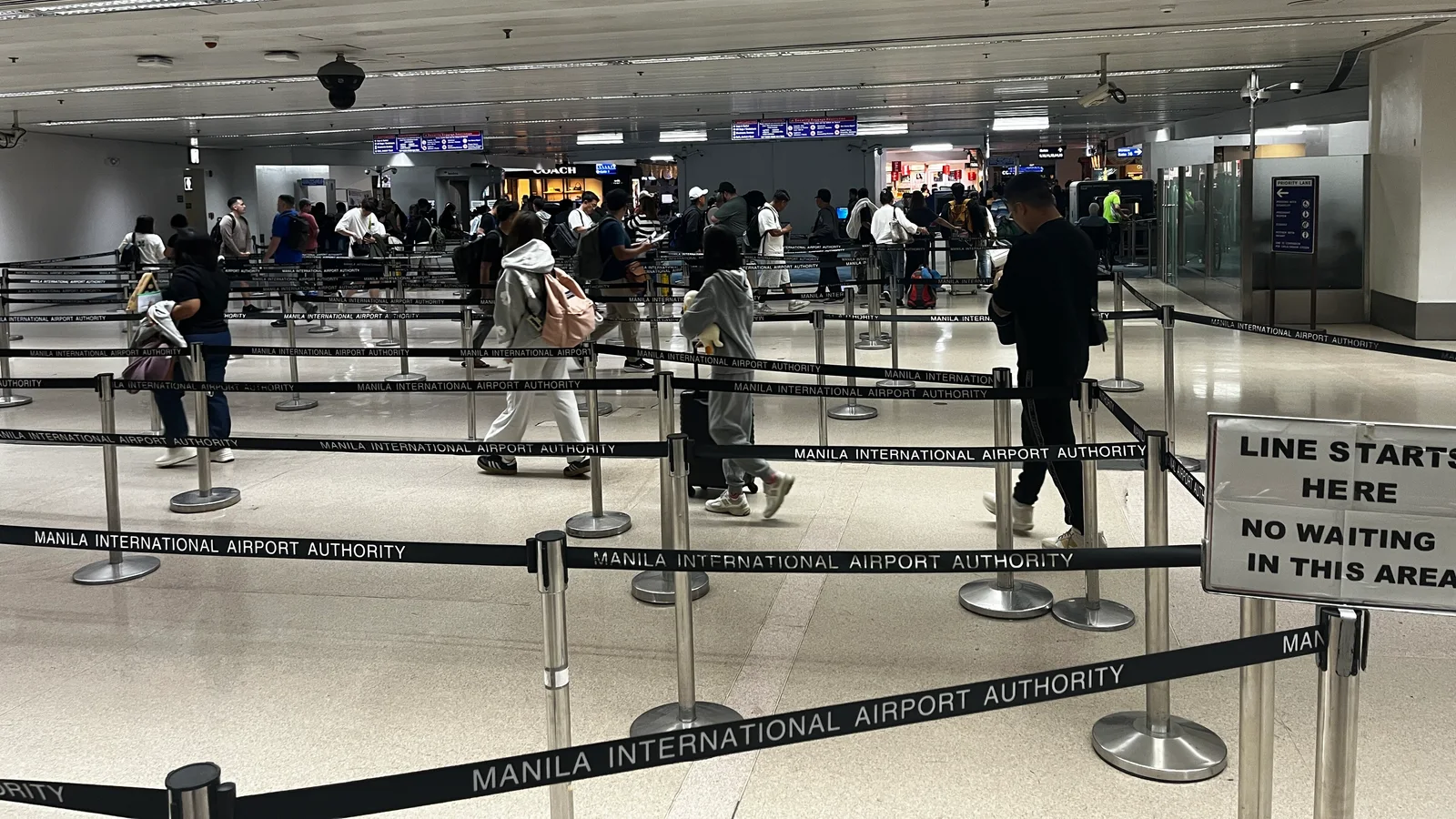
NAIA is a group of terminals, not one entrance. The airport operator's transport guide covers taxis, ride-hailing, buses, shuttles, and travel between terminals. The most useful internet task at arrivals is often finding the correct pickup point for your terminal. Confirm the terminal on your airline itinerary, then send that terminal and a specific meeting location to whoever is collecting you. "Manila airport" alone leaves too much room for confusion.
Save a screenshot of your flight details and the pickup instruction before leaving the arrivals hall. A map downloaded in advance can show the general route, but a driver or shuttle may need to send a live update. Airport Wi-Fi may be useful inside the terminal; it should not be your only plan for messages while you walk outside or cross the airport property.
co:sim's Philippines plans supply mobile data for apps and maps after the airport network drops. They are data-only: they do not create a Philippine phone number for standard voice calls or SMS. If your pickup service requires a conventional call, keep another working line or arrange an app-based contact method that both parties accept.
Airport Wi-Fi works well for a quick message and an address check before departure. Home-carrier roaming can be simpler if your plan already includes Philippine data on acceptable terms. A local SIM may be better for a longer visit or for someone who must have a local number, although buying and activating it takes time. A portable hotspot can serve several devices, but you must charge and carry it.
A travel eSIM suits someone who wants mobile data ready before arrival without swapping a physical SIM. co:sim emails an installation QR code after checkout; the relevant plan page shows the underlying network and plan-specific rules. Check phone compatibility and carrier unlock status first. You can compare the current Philippines data-only plans without relying on a fixed data amount or price in an article.
The honest choice depends on what happens next. Someone stepping straight into a hotel shuttle may need little data. Someone changing terminals, arranging a ride, and navigating across Metro Manila should expect to need a connection after leaving the Wi-Fi footprint. Neither a mobile plan nor airport Wi-Fi is guaranteed to work inside every corner of a large building, so keep offline copies of essentials.
Start with the airport operator's transport information and your airlines' booking details. Confirm which terminal receives your flight and which terminal handles any onward segment. A transfer might involve a different pickup point, baggage handling, or additional check-in; the right route depends on your actual itinerary. Do not assume that a Wi-Fi connection established in one terminal remains active in another.
Download your ticket and accommodation address before flying. Store screenshots of pickup instructions and a local contact method. If you rely on an app, open it in the arrivals area and confirm its current meeting point while you have a dependable connection. Avoid agreeing to a changed pickup location solely through a message from an unverified number.
For eSIM users, install the plan before departure while connected to stable internet, and read the plan page's activation and billing-start terms. On arrival, set the travel eSIM as the mobile-data line and follow its required roaming instructions. Keep your primary line selected for calls and text messages if needed, but check that it is not accidentally carrying costly data. The account dashboard can help manage an installed plan when you have service; the network shown on the plan page is the concrete detail to inspect before buying.

First check whether your browser is waiting for a sign-in page. Open an ordinary site, reconnect, and try again from a more central public area. Temporarily disabling a VPN or private DNS can reveal a captive portal; restore it after sign-in. If the network name looks different from signage, do not enter account credentials or payment details. Ask airport staff for the official current network.
If the hotspot itself is congested or unavailable, use offline copies of your documents and switch to mobile data if it is already active. A travel data plan can be a practical fallback for app messaging, but it depends on a compatible unlocked handset and local coverage. It also cannot fix a missing boarding pass saved only in a cloud account whose password you do not know. Download the file itself in advance.
Public Wi-Fi is useful for low-stakes arrival tasks. For banking or account recovery, prefer a trusted mobile connection when possible, check website addresses carefully, and avoid installing a profile or app just because a portal asks. The real priority at NAIA is a verified connection long enough to reach the correct terminal exit, pickup point, and onward destination.
Check your terminal and onward route before leaving the arrivals area. Compare current Philippines data plans if you need maps and messaging beyond NAIA, and keep your essential trip documents available offline.
Explore co:sim Philippines data plansThe airport's operator, New NAIA Infra Corp., announced upgraded free Wi-Fi at NAIA. That is the reliable basis for expecting an airport Wi-Fi option; the exact network name, login steps, and quality at your location should be checked against current signs or with airport staff. NAIA has multiple terminals, so first identify your actual arrival or departure terminal on the airline itinerary. Use the airport connection to send an arrival message, confirm your meeting point, and load an onward route while inside a covered area. Do not assume the signal will reach a taxi queue or follow a terminal transfer. A co:sim Philippines eSIM supplies data for internet apps on a compatible unlocked phone after you leave the hotspot, but it does not include a local number for ordinary calls or SMS.
Do not depend on one uninterrupted Wi-Fi session during a Manila NAIA terminal transfer. The airport operator's transport guide treats travel between terminals as a real ground-transport task, alongside taxis, ride-hailing, buses, and shuttles. Save your onward flight number, terminal, check-in requirements, and any shuttle instructions before moving. Your airline's instructions take priority, particularly if you must reclaim baggage or check in again. An offline screenshot gives you the essential facts when a hotspot disappears, but it cannot receive a changed departure gate or message a driver. If home-carrier roaming is included in your plan, it may provide continuity; otherwise a local SIM or travel eSIM can carry mobile data between buildings. co:sim emails its eSIM QR after checkout, letting an eligible unlocked phone be prepared before departure. Check each plan's listed network and setup details before relying on it.
Joining the network is only the first step. A captive portal may still need approval, so open a regular website in a browser and look for the official airport sign-in screen. If nothing appears, forget and rejoin the network, turn Wi-Fi off and on, or move toward a staffed public area. Apple's Wi-Fi instructions show where iPhone users can manage a connection; Android menus vary by manufacturer.
A VPN or private DNS setting can sometimes block the portal, so pause it briefly for sign-in and then restore it. Verify any SSID against airport signage, and ask staff before giving a page sensitive information. If your pickup is time-sensitive, turn Wi-Fi off and use a working mobile-data line instead. A Philippines data eSIM is an alternative data connection on an eligible phone, not a guarantee that a particular airport hotspot or local cellular signal will always be available.
Check the terminal written on the current airline booking or pickup confirmation before you start moving. NAIA has multiple terminals, and the airport operator's transport page includes guidance for travel between them. Tell a driver the terminal number and a precise meeting area, not just 'Manila airport.' For an onward flight, follow the airlines' instructions about baggage, check-in, and any immigration steps; those vary with the tickets you hold.
Save the second flight number, departure terminal, boarding pass, and transport instructions as screenshots while you still have a connection. An offline copy can prevent confusion if Wi-Fi disappears between buildings, but it cannot show a new gate or vehicle location. Keep a mobile-data option for live updates and agree on a fallback place to meet a travel companion. If instructions from a stranger conflict with your booked service, verify the change inside the official airline or ride app before leaving the public area.
Instant delivery by email · Install before you fly
 Travel Tips
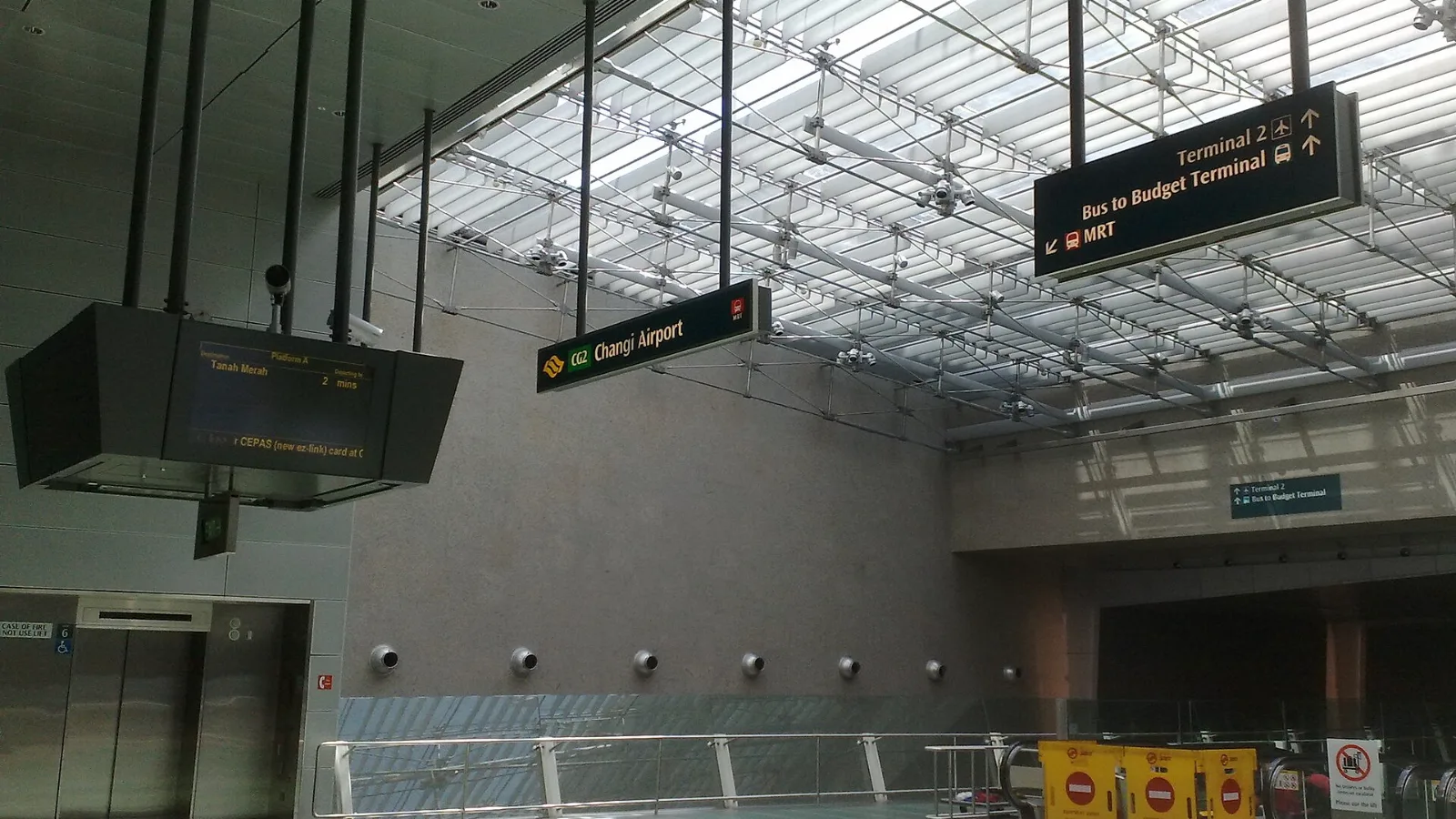
Take the MRT if you are one or two people staying near a train line: it costs about S$2 to S$3 and takes 35 to 50 minutes with one change. Take a Grab or taxi if three or more of you are sharing, you land at Terminal 4 or after the last train, because a car to the city takes about 30 minutes and usually costs S$25 to S$45.
 Travel Tips
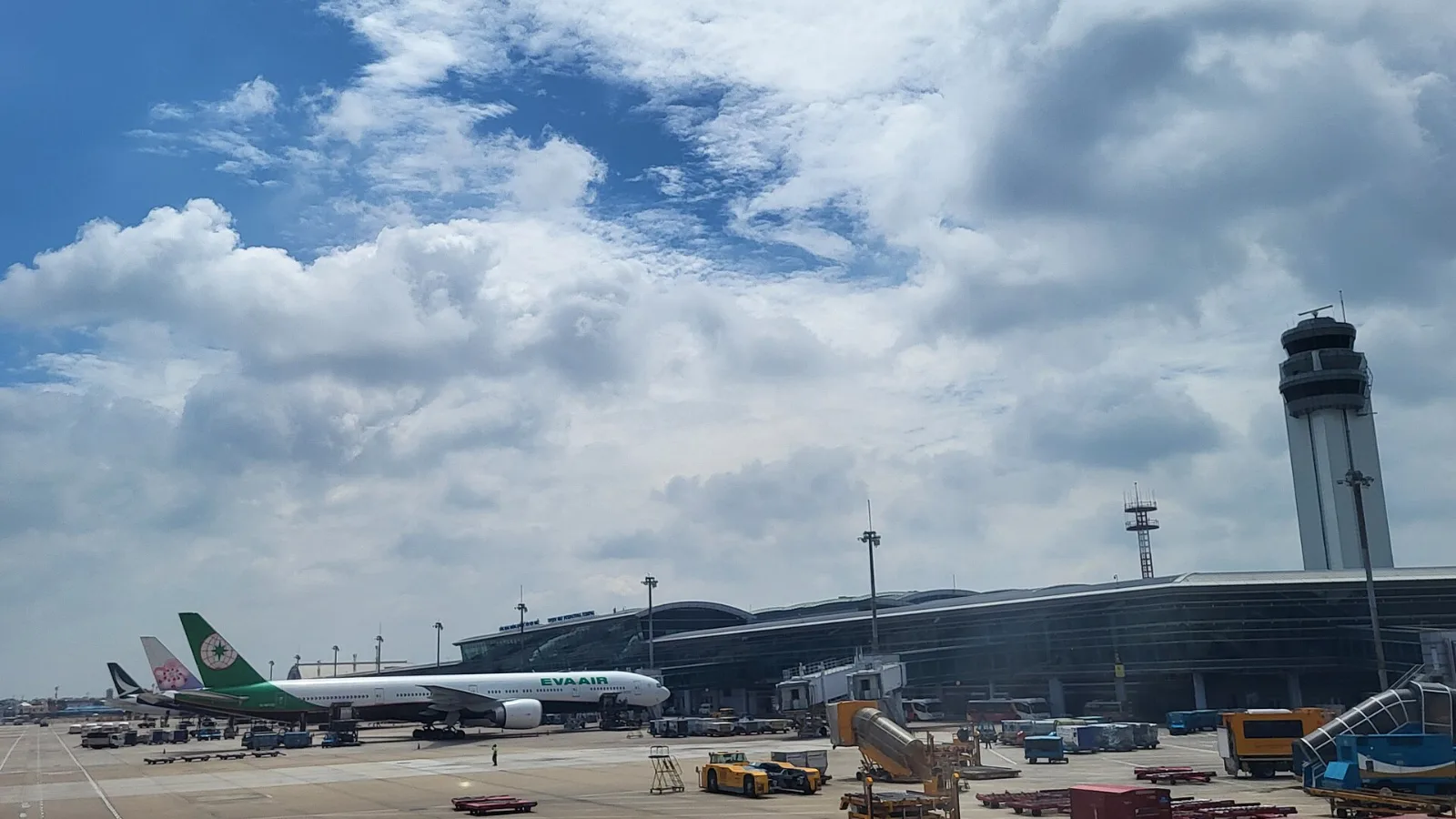
Take a Grab if you land at international Terminal 2, have a suitcase or are two or more people: a GrabCar to District 1 usually costs about 150,000 to 250,000 dong. Take bus 109 only on a tight budget with light luggage, because since 2025 it leaves from domestic Terminal 3, not the international terminal.
 Travel Tips
Take the Keisei Skyliner if your hotel is in Ueno, Asakusa or north-east Tokyo: it reaches Nippori in as little as 36 minutes for ¥2,580. Take the Narita Express if you are staying near Tokyo Station, Shinjuku, Shibuya or Yokohama, because it runs straight there, and the ¥5,200 round-trip ticket brings each leg close to the Skyliner fare.
| Option | Useful for | Boundary |
|---|
| NAIA free Wi-Fi | Tasks in a terminal | Coverage ends beyond airport facilities |
| Included home roaming | Immediate continuity | Depends on your carrier agreement |
| Local SIM | Local number and longer stay | Purchase, registration, and SIM setup |
| co:sim Philippines eSIM | Data through transfer and city journey | Compatible unlocked phone; data-only |
 co:sim Team