
Back to Blog
Dallas Fort Worth Airport Wi-Fi is complimentary, according to DFW's own connection guide. Check the current airport network instructions, connect, and save your next gate or pickup details while you are online. For travel after you leave DFW, a compatible co:sim data-only eSIM offers a separate mobile connection under the terms of the plan you select.
Start in your device's Wi-Fi settings and compare the available networks with DFW's official Wi-Fi and technology page or signs in your terminal. Choose the airport network shown there, then complete any prompt on your screen. Network labels and login interfaces can change, so use the current official instructions instead of a screenshot copied from a travel forum. The airport says the service is complimentary; an unexpected payment request is a reason to stop and check with staff.
After joining, load a real page such as your airline's flight status. A wireless icon alone does not confirm usable internet. If the page loads, save your boarding pass where the airline permits, message the person meeting you, and record the terminal and gate. Keep a backup copy of the meeting instructions and destination address in your notes or downloads. The airport connection can be most useful exactly when a flight has changed and you need one current answer.
Check whether your device has silently switched back to mobile data. Open a browser page to see whether a connection screen appears, then disconnect and reconnect once if necessary. A VPN or private DNS feature may block some captive pages; temporarily changing that setting is a device test, not a guaranteed airport fix. Restore your normal privacy setting after the test. If another device in your party connects, compare the steps, but do not copy credentials from an unrelated network.
If the problem remains, show staff the network you selected and the message your phone displays. The DFW guide is the official reference for its complimentary service. Avoid a third-party “help” page requesting a payment card. Keep your travel details offline so troubleshooting does not consume the time you need to reach a gate or pickup point.
An already prepared co:sim eSIM can provide mobile data on a compatible phone when the chosen plan applies to your destination. It does not authenticate you to DFW's Wi-Fi, and a data-only plan does not receive ordinary SMS. If you need a text to your home number, check how that line and your carrier operate abroad before switching settings in a hurry.
At DFW, the key distinction is your side of security. The airport's connection guide identifies Skylink for transfers inside security and Terminal Link for travelers outside security. Check the terminal on the onward boarding pass and follow the airport's current signs. A map can show the route, but your airline and screening situation decide whether you can use the secure-side option.
If you must reclaim baggage or re-enter security, plan the outside-security route rather than assuming the faster-looking line on a map applies. If you are already airside and remain eligible to stay there, Skylink is the route described by the airport for that context. Do not leave the secure area merely because a third-party itinerary says “change terminals”; verify where the next flight departs and which route is open to you.
Use Wi-Fi for the facts most likely to change: gate, terminal, flight status and transfer notices. Keep the stable facts offline: booking code, flight number and the person you need to contact. For a tight connection, an airport display or agent is more useful than refreshing a cached map without knowing whether its location data is current.
The table does not promise a particular wait time or exempt anyone from screening. Confirm your route on the travel day.
The airport's ground transportation page is the starting point for current choices and pickup directions. Identify your arrival terminal, your destination's full address and the service you actually booked. “Dallas” and “Fort Worth” are different endpoints for a ground journey; a generic city-center pin is not enough. Ask a host or driver to confirm a precise meeting point when the booking does not provide one.

For navigation after the airport, review co:sim's US data plans and verify the plan's stated details. If your route also includes Canada or Mexico, compare the North America regional options instead of inferring that a US product applies everywhere. A product link is a place to check current eligibility, not evidence that mobile coverage is identical on every road.
Prepare it before departure if you intend to use it and your device supports it. Apple's eSIM guide covers compatible iPhone setup; check your own manufacturer's instructions for another phone. Confirm the phone is not carrier-locked for the selected product and read the plan's installation and service-start rules. Completing setup while you have a reliable connection means you do not need to solve installation and airport Wi-Fi at the same moment.
Label the travel line and review which line handles mobile data after landing. Keep your regular line's call and SMS arrangements separate: a data-only travel profile adds neither a voice number nor an SMS inbox. A local SIM or your home carrier may be a better fit if a conventional phone number is essential. An airport Wi-Fi session can be enough for a single message at DFW; mobile data is useful when your tasks continue after you leave.
Browse co:sim United States data plansYes. DFW Airport describes its Wi-Fi as complimentary and publishes connection guidance on its own website. Use that page and current signs to choose a network, rather than trusting a search snippet that may show a dated name. After connecting, load a real page before assuming your itinerary or pickup message has synchronized. If the browser opens an unfamiliar payment page, pause and confirm the service with airport staff; the airport's description does not call for buying Wi-Fi. Save your flight number, terminal and destination address on the phone, because those facts should survive a connection failure. A co:sim travel eSIM is an independent mobile-data choice for a compatible device and suitable plan; it is not required for DFW's complimentary Wi-Fi and does not issue a US phone number.
The airport offers complimentary Wi-Fi, but plan the actual terminal change from DFW's connection guide, not from a network indicator. DFW distinguishes Skylink inside security from Terminal Link outside security. Your next gate, baggage arrangements and screening status determine which route applies. Check the airline's current flight details and airport signs, save the boarding pass offline, and leave time for the physical transfer. Public Wi-Fi can help you see a gate change or contact someone, but it cannot guarantee that a particular route remains available or that you will avoid screening. A data-only eSIM can carry updates beyond an airport Wi-Fi session if its plan and your phone are suitable. It does not affect the transfer rules or replace an agent's instructions.
To use a co:sim data-only eSIM for mobile data, first check that the phone supports eSIM and the product fits your destination. The plan does not supply a US voice number or SMS service. You may keep your usual line for calls and texts if your device and home carrier permit it, but confirm the carrier's overseas terms before you rely on that arrangement. Internet messaging can work over data when the recipient uses the same service; a taxi dispatcher that requires a standard call is a different case. Apple's setup guide explains where compatible iPhones add and manage eSIM profiles. Install while you have a dependable connection, save the QR instructions, and read the selected plan's start conditions. DFW's free Wi-Fi remains a separate airport service.
Save your flight number, actual arrival terminal, full street address, provider name and agreed meeting place. The airport's transportation page can help you find the current ground-transport options, but your booking supplies the specific pickup instructions. A driver waiting at one terminal may not be able to infer where you exited from a map pin. Send a message while connected, then keep the response offline. If the flight or terminal changes, confirm the new meeting location instead of assuming the original one still works. A mobile-data plan can provide mobile data after you leave DFW if the device and selected product qualify, yet it cannot correct a wrong address or replace the provider's current directions. Check those directions on the day you travel.
DFW's free terminal connection is useful for live flight and transfer details. Choose onward data only for what your route requires; co:sim lists the current US plan options for comparison.
Instant delivery by email · Install before you fly
 Travel Tips
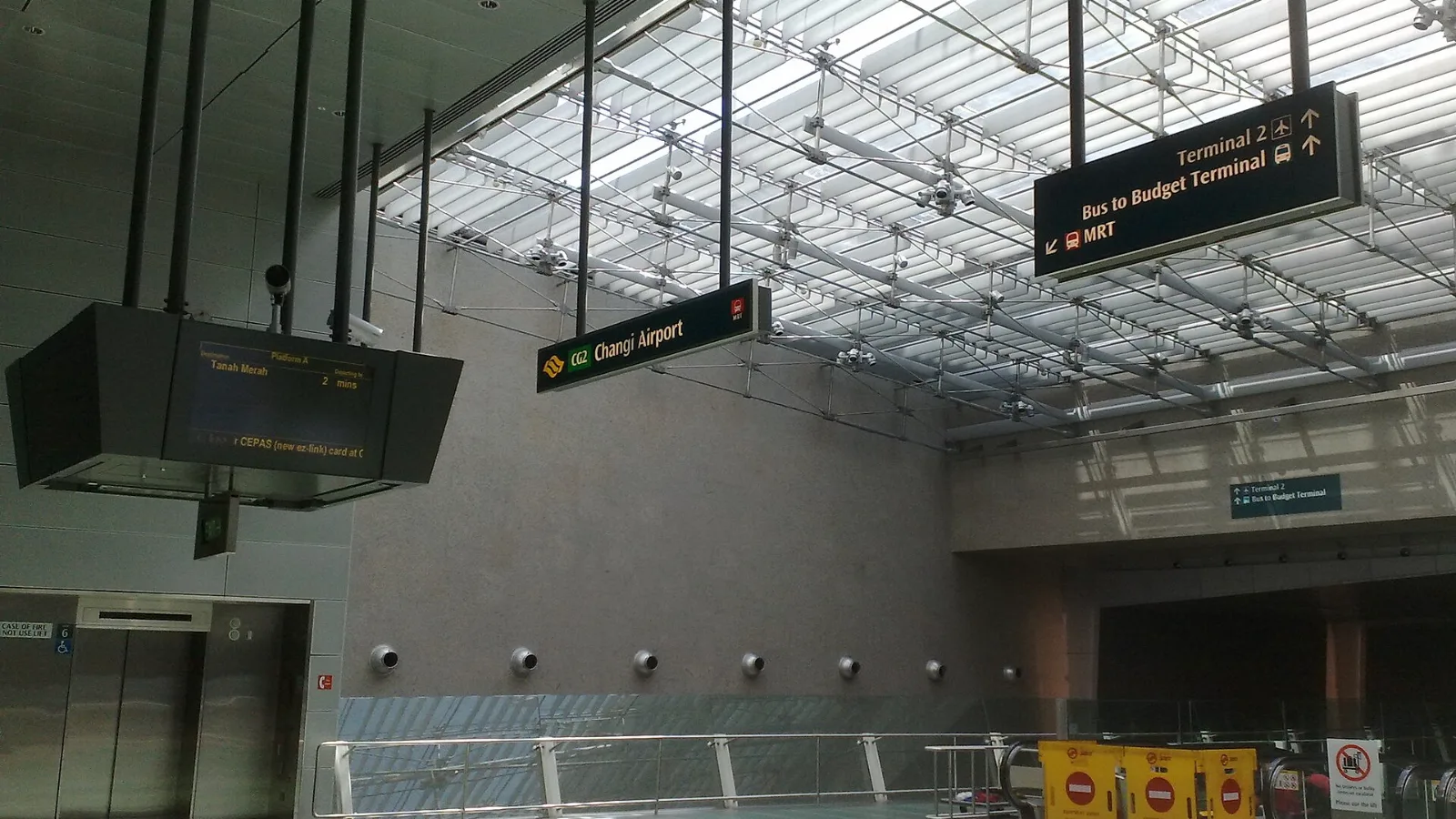
Take the MRT if you are one or two people staying near a train line: it costs about S$2 to S$3 and takes 35 to 50 minutes with one change. Take a Grab or taxi if three or more of you are sharing, you land at Terminal 4 or after the last train, because a car to the city takes about 30 minutes and usually costs S$25 to S$45.
 Travel Tips
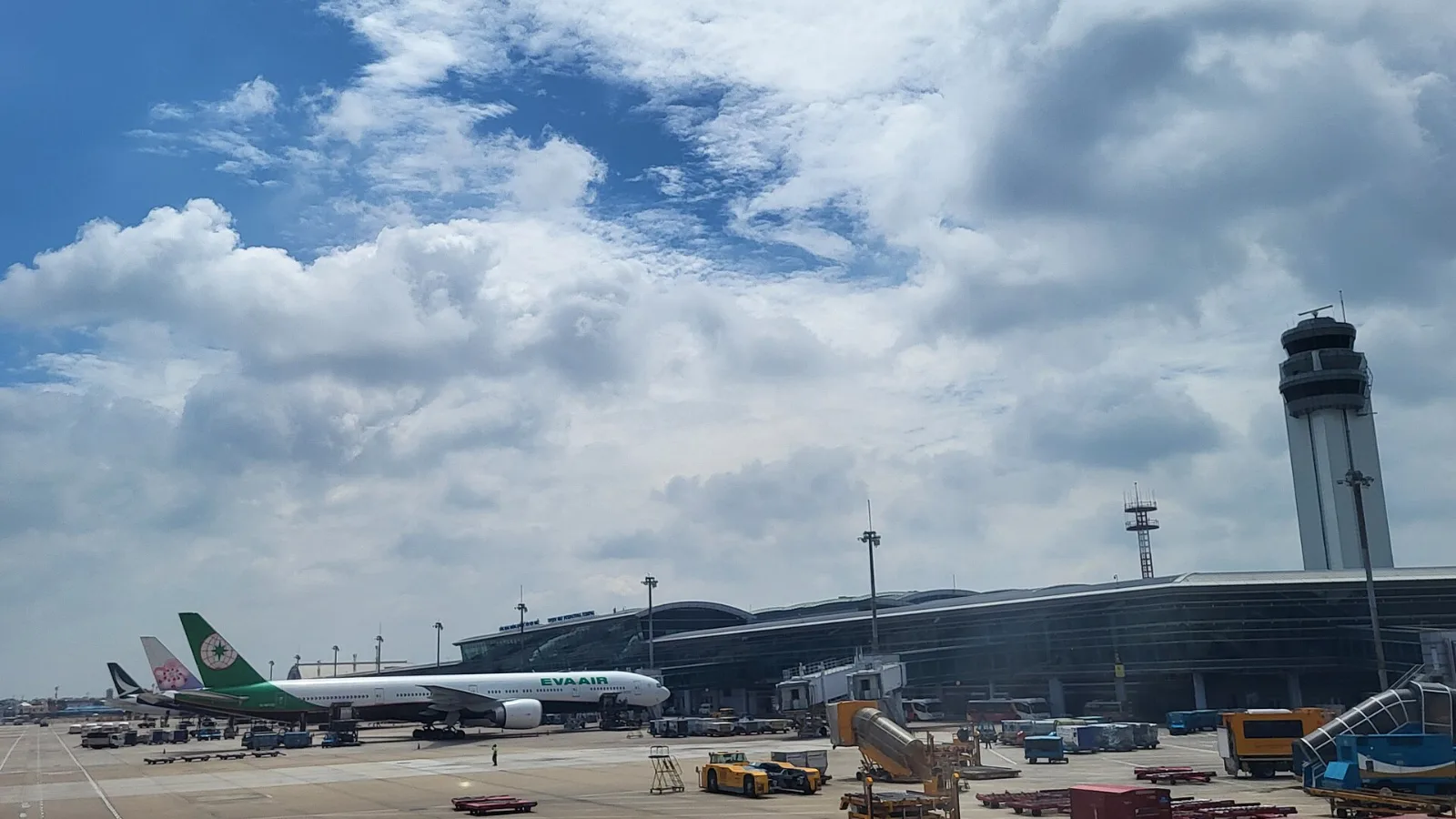
Take a Grab if you land at international Terminal 2, have a suitcase or are two or more people: a GrabCar to District 1 usually costs about 150,000 to 250,000 dong. Take bus 109 only on a tight budget with light luggage, because since 2025 it leaves from domestic Terminal 3, not the international terminal.
 Travel Tips
Take the Keisei Skyliner if your hotel is in Ueno, Asakusa or north-east Tokyo: it reaches Nippori in as little as 36 minutes for ¥2,580. Take the Narita Express if you are staying near Tokyo Station, Shinjuku, Shibuya or Yokohama, because it runs straight there, and the ¥5,200 round-trip ticket brings each leg close to the Skyliner fare.
| Situation | DFW route to investigate | What to save |
|---|
| Remaining inside security | Skylink, per the airport's guide | Next terminal and boarding pass |
| Outside security | Terminal Link, per the airport's guide | Shuttle stop and screening plan |
| Leaving the airport | Ground-transport instructions | Pickup location and full address |
| Continuing beyond DFW | Selected mobile-data option | Plan terms and setup instructions |
 co:sim Team