
Back to Blog
Chicago O'Hare Airport Wi-Fi is free in the terminals, according to the airport's technology guide. Check the network shown on airport signs, finish any on-screen connection step, and save your next route before leaving the building. A compatible co:sim data-only eSIM is a separate mobile-data option for the trip beyond ORD; it does not replace airport Wi-Fi or supply a phone number.
Open your phone's Wi-Fi settings after you reach a public area of O'Hare. Compare the network list with current airport signage or the official technology page, select the airport network, and follow any page that opens. The airport documents free Wi-Fi throughout its terminals, but a travel blog cannot verify the network displayed on your device at the moment you arrive. That is why the sign in the terminal is the final check before you enter information.
Once connected, do a small useful task first: send a message to the person meeting you, open your airline's current flight details, or load your train route. A Wi-Fi icon only confirms a local wireless connection; it does not prove the browser can reach the internet. If the task loads, download your booking, hotel address and directions while the connection is working. Keep those files on the device, rather than assuming a browser tab will remain open after you leave the terminal.
First check whether Wi-Fi is selected and mobile data is doing the actual work. Open an ordinary web page in a browser; a captive sign-in screen may then appear. If nothing loads, disconnect and reconnect once. Turn off a VPN or private DNS setting temporarily only if it is blocking the airport page, and restore your preferred setting afterward. These are device troubleshooting steps, not an airport promise that every login problem has the same cause.
If your phone says “connected, no internet,” ask at an information desk which connection instructions apply in your terminal. Give the staff member the network name you selected and the exact message on screen. The official O'Hare page is useful as a reference, but a posted notice or staff instruction can reflect a recent change sooner than an old screenshot shared online. Do not enter a payment card on an unexpected page; the airport's own guide describes the terminal Wi-Fi as free.
When connectivity is urgent, use a connection you already control. A co:sim eSIM can carry mobile data if your phone supports eSIM, your selected plan fits your destination, and the plan is ready for use under its own terms. It is not an airport authentication shortcut and it will not receive a text message for you. Keep a screenshot of your pickup instructions so that even a failed Wi-Fi attempt does not strand the next step of your arrival.
Read the terminal on both flight reservations before you travel. O'Hare's Airport Transit System guide describes the train connecting Terminals 1, 2, 3 and 5 with the Multi-Modal Facility. That does not mean every passenger can remain inside the secure area while changing terminals; the route and screening requirements depend on the flights. Follow your airline's connection instructions and current airport signs, especially after an international arrival.
The network is useful for checking a changed gate, reloading a boarding pass, or telling someone that the connection is tight. It is not a substitute for knowing which terminal you need. Download both boarding passes where the airline allows it and save the terminal name as text. If a flight changes, verify the new terminal in the airline app or at an airport display before walking to a platform.
For public transit, start with the airport's public-transit directions. They identify the CTA Blue Line as an option from O'Hare into the city and link onward transit information. Decide which stop is nearest your accommodation before you arrive. A downtown stop and your hotel's front door are different destinations, and the last part of the trip matters when you are carrying bags or arriving late.

Once you leave airport Wi-Fi, a separate mobile connection can be useful for live transit changes or contacting a host. Check the actual destination, device compatibility, data allowance and plan terms on the co:sim United States data page. If your journey continues across the border, compare the North America regional plans rather than assuming a US-only product covers another country. The product page, not an airport article, is where the current plan details belong.
If you plan to use one, check the device first. Apple's eSIM setup guide explains the iPhone flow; other manufacturers publish their own model instructions. Confirm that your phone supports eSIM and is not locked against the plan you intend to use. Installation usually requires an existing internet connection, so preparing on a trusted connection before departure avoids making an airport login your only route to setup. Read the chosen plan's start rules instead of assuming installation and the start of service are identical.
Keep the QR email and the provider's instructions accessible offline. Label the travel line clearly, then verify which line is selected for mobile data when you arrive. If you need your usual number for calls or bank texts, check with your home carrier how that line behaves abroad; a data-only eSIM does not create a second voice or SMS number. If the airport network works and you only need to send a pickup message, you may need no paid mobile connection at that moment. Choose based on what happens after you leave ORD.
Browse co:sim United States data plansThe Chicago Department of Aviation's O'Hare technology page says free Wi-Fi internet access is available throughout the airport terminals. It is the best starting point for the airport's own description, but it does not guarantee that your particular phone will connect immediately or that a third-party page using “O'Hare” in its name is legitimate. Check the network shown on airport signage, then complete the connection step presented on your device. Test with a small web request before you rely on it for a boarding pass or pickup message. If the page fails, ask airport staff and keep your itinerary details offline. A co:sim data-only eSIM can be an independent mobile-data option after arrival if its device and plan requirements are met; it is not required to access the airport's free Wi-Fi and it provides no phone number.
Use it to check the next flight, but keep a plan that works without a connection. O'Hare's Airport Transit System information describes travel among Terminals 1, 2, 3 and 5. Your airline decides the flight and boarding requirements, while immigration, baggage and screening can change the route available to you. Download the onward boarding pass, note both terminal names, and check airport displays when you arrive. If a gate changes, use the airline's live channel rather than an old screenshot. Keep your airline's app available for last-minute changes. A suitable mobile-data plan can help you receive updates beyond a terminal Wi-Fi session, subject to your chosen plan and phone. Neither connection method shortens required airport procedures, so leave enough transfer time and follow staff directions.
A co:sim data-only eSIM supplies mobile data under the selected plan; it does not include a US voice number or SMS inbox. That distinction matters if a hotel, driver or service expects a conventional phone call or text. You can often communicate through internet messaging when both parties use it, but keep another contact route for bookings that insist on a phone number. Check your home carrier's roaming terms before leaving that line active for calls or texts. Set your phone's mobile-data line deliberately so background traffic does not use a line you did not intend. Apple's eSIM instructions show where compatible iPhones manage the profile; other devices have different menus. Airport Wi-Fi can cover tasks inside O'Hare, while mobile data becomes relevant when your trip leaves the terminal.
Save the full destination address, reservation confirmation, pickup contact and the final leg of your route. The airport's public-transit page identifies the CTA Blue Line as an option, but you still need to choose the right stop and onward route for your address. If someone is collecting you, confirm the terminal and meeting location with them, not only with a map pin. Keep a screenshot or downloaded note because airport Wi-Fi may no longer be useful once you move away from the terminal. A mobile-data plan can provide mobile data for navigation if your device and selected plan qualify, but it does not replace the address, a charged phone or the operator's current transit notices. Check those notices and the airport signs on your travel day.
Use the free terminal network for immediate tasks, then choose a connection for the journey you actually have after O'Hare. co:sim's US data options show current plan details before you decide.
Instant delivery by email · Install before you fly
 Travel Tips
Take the Keisei Skyliner if your hotel is in Ueno, Asakusa or north-east Tokyo: it reaches Nippori in as little as 36 minutes for ¥2,580. Take the Narita Express if you are staying near Tokyo Station, Shinjuku, Shibuya or Yokohama, because it runs straight there, and the ¥5,200 round-trip ticket brings each leg close to the Skyliner fare.
 Travel Tips
Take bus 86 if you are travelling light, land before mid-evening and are staying near Hoan Kiem Lake: it costs about 45,000 dong and takes 50 to 70 minutes. Take a Grab if there are two or more of you, you have big bags or you land late, because one car to the Old Quarter usually costs about 230,000 to 320,000 dong and drops you at the door.
 Travel Tips
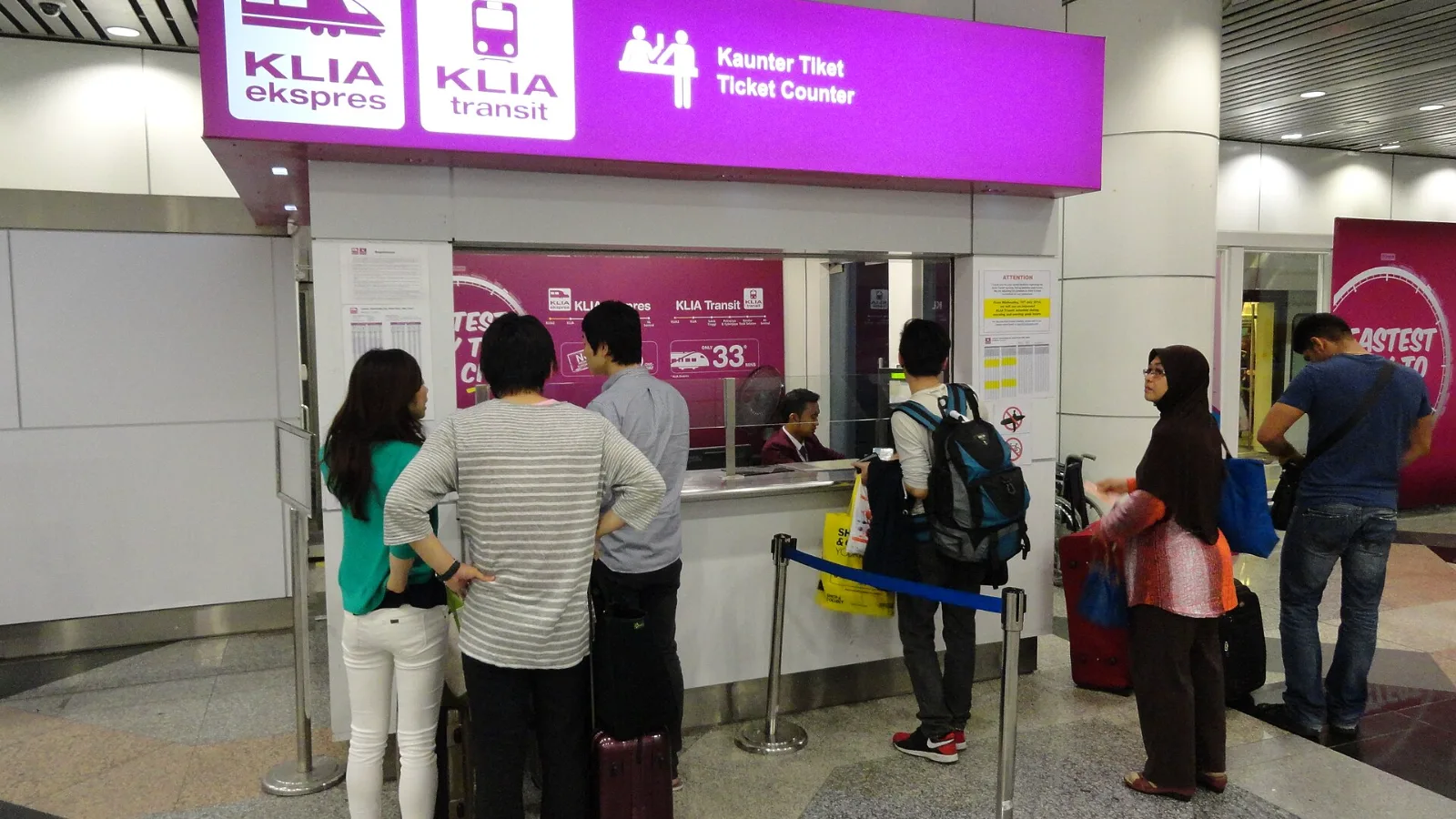
Take the KLIA Ekspres if you are travelling alone or as a pair and your hotel is near KL Sentral or a rail line: it reaches KL Sentral in 28 minutes from Terminal 1 for RM55, less 10% if you buy online. Take a Grab if three or more of you are going to a hotel away from KL Sentral, because one car fare usually costs less than three train tickets and drops you at the door.
| Need at ORD | Check while connected | Keep available offline |
|---|
| Connecting flight | Airline's current gate and terminal | Boarding pass and reservation number |
| Pickup | Confirmed meeting point and contact | Driver name and pickup instructions |
| Chicago transit | Current route and service notices | Destination address and station name |
| Ongoing data | Compare the selected plan's stated terms | QR email and installation instructions |
 co:sim Team